CygNet Studio > Using CygNet Studio Tools and Controls > Group Tree Control > Configuring the Group Tree Control

Configuring the Group Tree Control

Configuration of the Group Tree Control depends in large part on your specific needs. Have a clear idea of the needs of your user(s) before configuring the control.

For information about how groups work in CygNet, see Groups.

To Configure the Group Tree Control

  1. Using CygNet Studio, open the .csf file you want to alter.
  2. You can add a new Group Tree Control or edit an existing Group Tree Control:
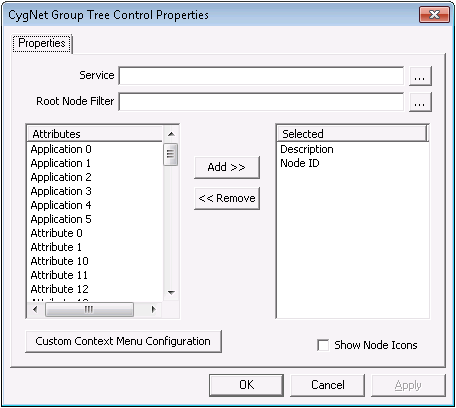
  3. On the Property Sheet that opens, click the ActiveX page, go to the (OCXProperties) row, and click the Browse button. The following dialog box appears:

Group Tree Control Properties

  1. Beside the Service field, click the Browse button, select the appropriate Group Service (GRP), and click OK.
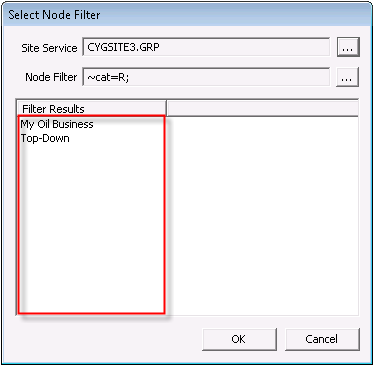
  2. If you want to display all root nodes and associated child nodes for the selected GRP, leave the Root Node Filter field blank. If you want to display a subset of root nodes and child nodes, beside the Root Node Filter field, click the Browse button. The following dialog box appears:

Filter Results

  1. All available root nodes for the selected GRP appear in the Filter Results column. Select the root node under Filter Results that you want to display and click OK.
  2. At the Group Tree Control Properties dialog box, use Add >> and <<Remove to select GRP node attributes to display or remove from in the group tree. By default, items in the selected tree root are displayed by Description and Node ID. For information about attributes displayed here, see Node Category, Type, and Attribute Identifiers. When you are done adding and removing node attributes, click Apply to save your settings.
  3. If you want to make custom context menu configurations, click Custom Context Menu Configuration. For information about configuring a custom context menu, see Configuring Context Menus and Custom Context Menus. When you are done, click OK.
  4. If you want to display node icons in your group tree, check Show Node Icons. A node icon looks like this: Node icon.
  5. When you are finished configuring (OCXProperties) for your Group Tree Control, click Apply to save your changes, then click OK to exit.
  6. At the Property Sheet, make other ActiveX, Normal, and Events configurations to suit your needs.
  7. Close the Property Sheet, save your work in CygNet Studio, then click View > Switch to Run Mode to view the results of your new Group Tree Control settings.

Sample Group Tree Control

The following image is a sample basic Group Tree Control. Your tree might vary considerably.
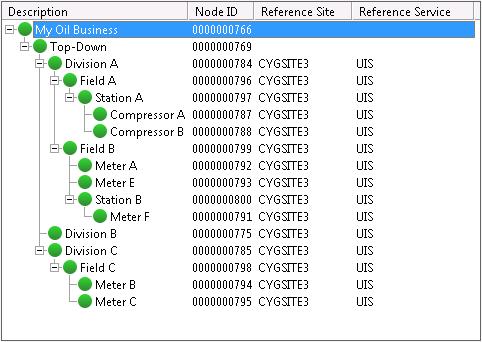
Group Tree Control sample
Sample Group Tree Control in Run Mode
Back to top

Let us know how we can improve this topic.

CygNet at weatherford.com

© 2020 Weatherford. All rights reserved.